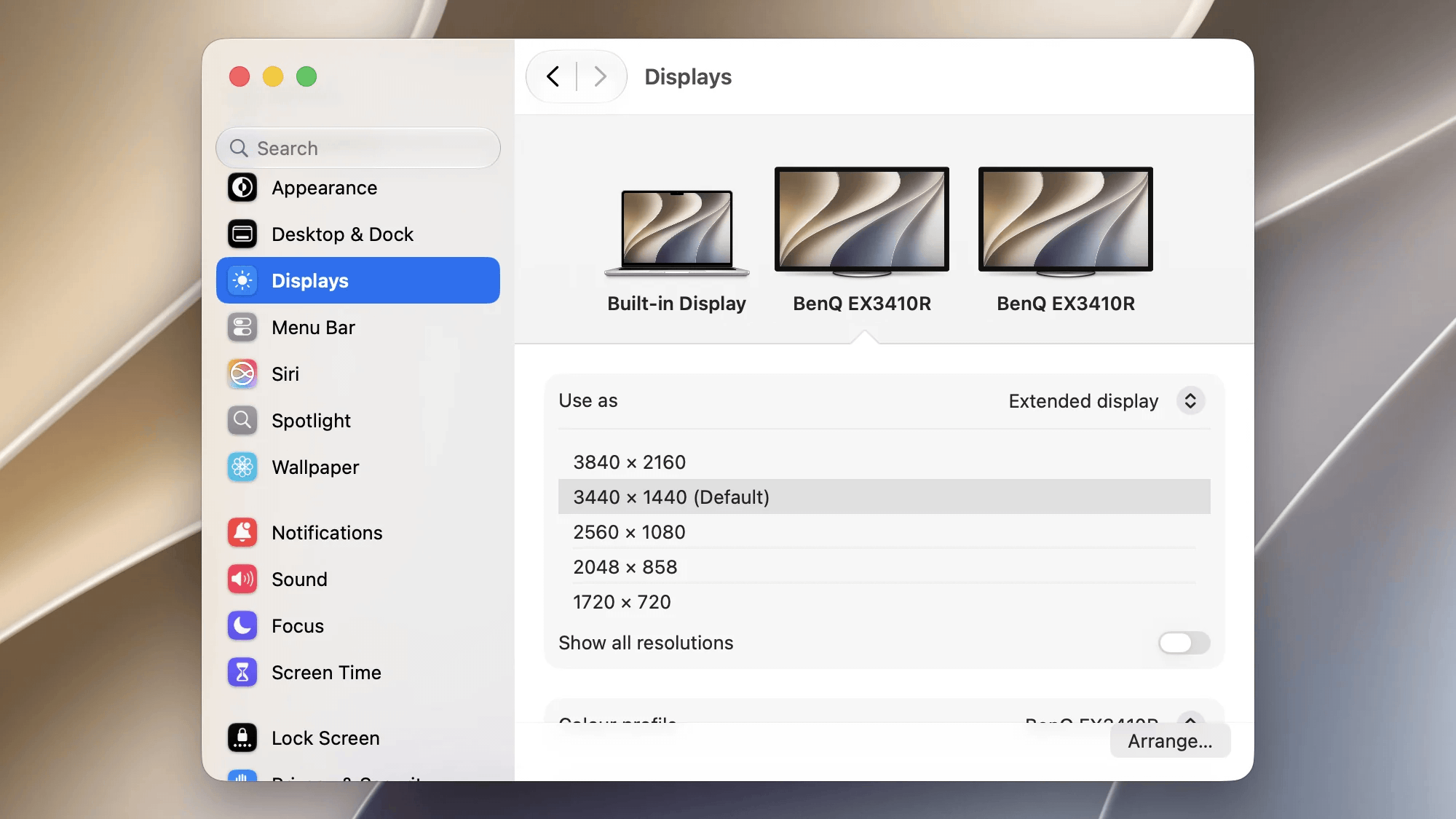
Blackout turns off your MacBook’s built-in display when you are working on an external monitor. System settings will not show the internal display as a desktop anymore. Unplugging monitors or closing the app will return to normal state again.
Use the switches above to see how your displays appear in macOS.
Built-in display on
Individual display switches
Switch individual displays on or off from one window.
Keep the lid open
Use your MacBook’s keyboard and trackpad with its screen dark.
Automatic reset to default
If something goes wrong, the app will automatically reset the screens to default (all screens are on)
Minimal footprint
Reduce the app to a tiny top menu bar icon, without an icon in the dock
Detects monitor disconnects
If monitor cable is unplugged, the app will detect this and act accordingly
TouchID keeps working
Unlike other tools, login or authentication via TouchID will work even with the display turned off.
Download Blackout
Requires macOS Sequoia or later.
FAQ
Can I download the app from the App Store?
No, as Apple doesn't allow software that uses the Apple hardware API in the App Store, probably to protect normies from breaking their systems. This app is officially signed by Apple with my valid Apple Developer account, so it's safe to use.
What happens when I close the app, restart the Mac, the app crashes, or I unplug the monitor cable?
In all these cases the internal display will be turned on with 80% brightness instantly. Also when macOS updates or other such events happen.
Compatibility
Feature compatibility is awaiting verification. A dash means no test result is available yet.