MacBook screen flickering or showing lines? What to do
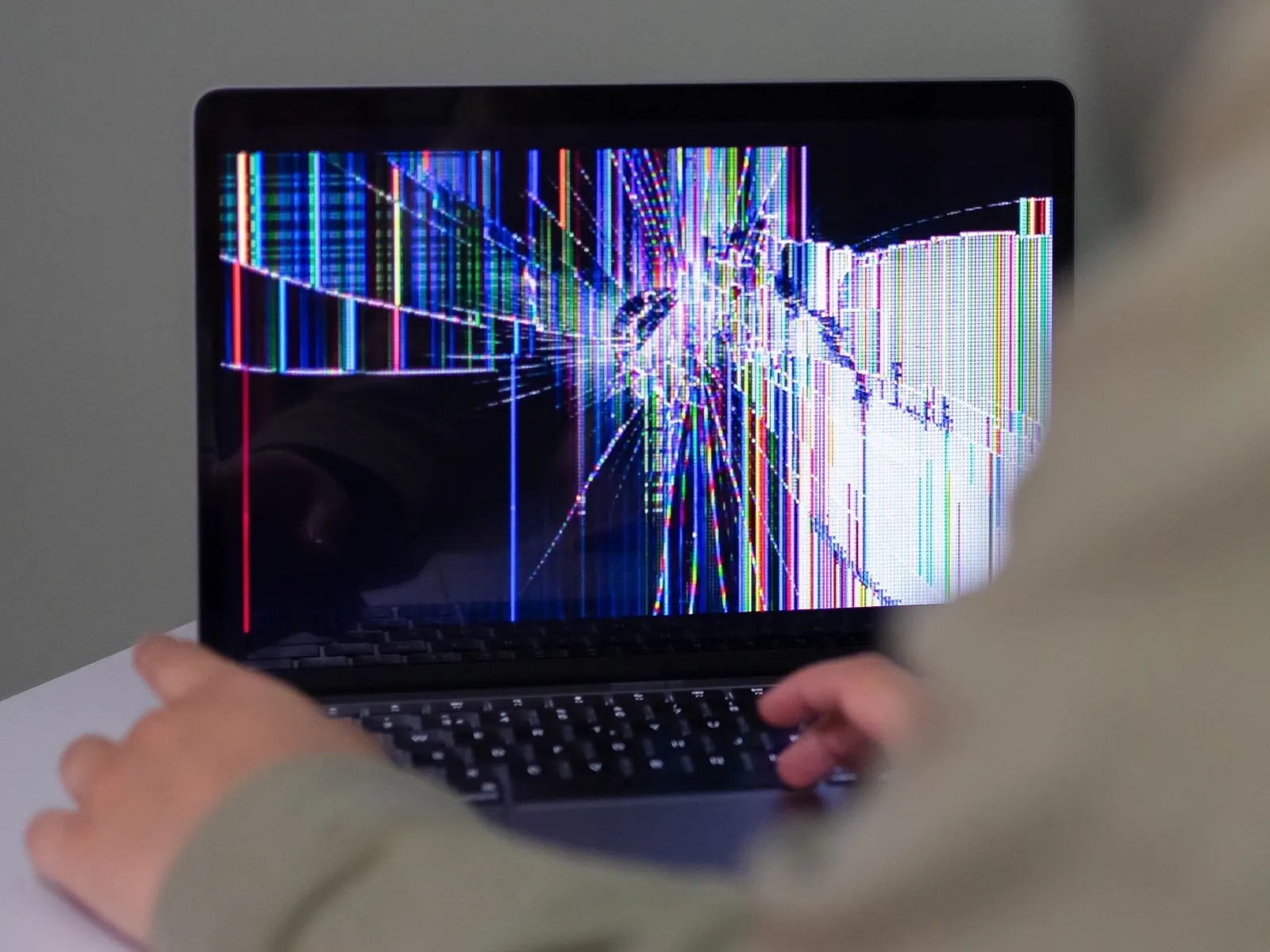
Your MacBook screen flickers, shows colored lines or stripes, or has parts that glitch. Sometimes that’s a software problem you can fix in minutes, sometimes it’s the hardware. Here’s how to find out, and how to keep working in the meantime.
1 Software or hardware? The screenshot test
Press Shift Command 3 to take a screenshot while the lines or flickering are visible, then open it on another screen, for example on your external monitor or your phone.
- The lines are in the screenshot: macOS is drawing them, so it’s most likely a software or graphics problem. Try the fixes in step 2.
- The screenshot looks clean: the problem is between the Mac and the panel, so it’s most likely the display, its cable or a crack. Skip to step 3.
Another hint: if the lines are also visible on the Apple logo while the Mac starts up, before macOS has loaded, it’s hardware.
2 Fixes to try for software problems
- Restart your Mac. On Apple Silicon Macs, shut down completely, wait 30 seconds and turn it back on.
- Update macOS in System Settings › General › Software Update. Display bugs are often fixed in updates.
- Turn off “Automatically adjust brightness” and True Tone in System Settings › Displays to see whether the flicker stops.
- Check a specific app: if the flicker only happens in one app or browser, update it or turn off its hardware acceleration.
- Start in Safe Mode: if the problem is gone there, a login item or extension is likely the cause.
- Intel Macs: reset NVRAM by holding Option Command P R right after turning the Mac on, for about 20 seconds.
3 If it’s the hardware
Common causes are a damaged display cable (on some MacBook Pro models from 2016 and later, a worn cable causes a “stage light” effect at the bottom of the screen or lines when opening the lid), pressure damage, liquid damage or a cracked panel.
- Check whether Apple runs a repair program for your model at support.apple.com, or whether you’re still under warranty or AppleCare.
- Otherwise ask an Apple Store or authorized service provider for a quote. A display replacement is often expensive, so many people keep using the MacBook with an external monitor instead.
4 Keep working with the broken screen turned off
A flickering screen next to your monitor is distracting, and windows or the mouse pointer keep landing on it. Blackout switches the built-in display off completely, so macOS treats it as disconnected and everything stays on your external monitor. You keep using the MacBook with the lid open, including keyboard, trackpad, camera, microphone and Touch ID. More about using a MacBook with a broken screen.
Blackout is free to use for 7 days. If it works well for you, you can unlock unlimited use for a small price.