How do I turn off my MacBook screen?
There are two ways to turn off the screen of your MacBook: you can dim the brightness all the way down, or you can use an app that really switches the built-in display off.
1 Dim the brightness to zero
Turning the brightness all the way down makes the screen completely dark. That’s perfect when you just want to listen to music at night or don’t need anything to see from your Mac.
But it doesn’t really turn the display off: macOS still treats it as an active screen, your desktop, windows and mouse pointer stay on it, and it stays dark until you turn the brightness up again yourself.
MacBook without Touch Bar
- Darker: press F1 (the key with the small sun) repeatedly until the screen is completely black.
- Brighter: press F2 (the key with the large sun).
- If your F keys are set to work as standard function keys, hold fn while pressing them.
MacBook with Touch Bar
- Darker: in the Control Strip on the right side of the Touch Bar, tap the sun icon and drag the slider all the way to the left.
- Brighter: the Touch Bar keeps glowing while the screen is dark. Tap the sun icon again and drag the slider to the right.
- Alternatively, tap the ‹ arrow to expand the Control Strip and use the single brightness buttons.
Tip: if the screen gets brighter on its own, turn off “Automatically adjust brightness” in System Settings › Displays.
2 Really turn the screen off with Blackout
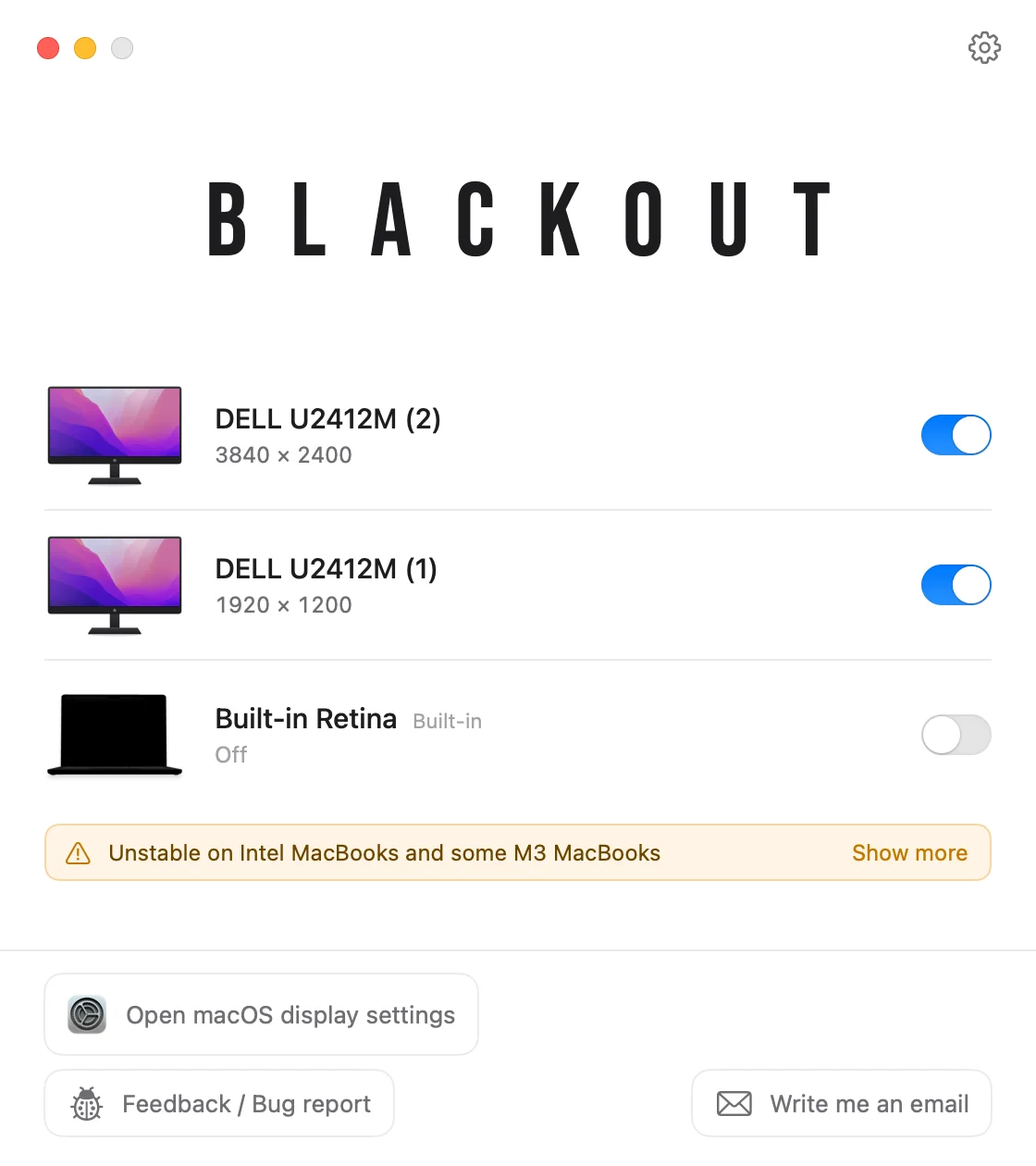
To actually switch the built-in display off, you need software. Blackout does exactly that: macOS treats the MacBook screen as disconnected, so your windows, dock and mouse pointer move to your external monitor and you can keep working with the lid open.
- Blackout only lets you do this while an external monitor is connected, so you can never end up with no screen at all.
- If you unplug the cable between MacBook and monitor, the MacBook screen automatically turns back on.
- The same happens if the app crashes, the Mac restarts or anything else goes wrong.
Blackout is free to use for 7 days. If it works well for you, you can unlock unlimited use for a small price.