How to use your MacBook with the lid open and an external monitor
Apple’s answer to “MacBook plus external monitor” is clamshell mode: close the lid and use only the big screen. But many people want the lid open, to type on the MacBook keyboard, use the trackpad, the webcam, the microphone and Touch ID. Here are your options.
1 Clamshell mode (lid closed)
In clamshell mode the built-in display is really off and macOS uses only your external monitor. To use it:
- Connect your MacBook to power.
- Connect the external monitor, plus an external keyboard and mouse or trackpad.
- Close the lid. After a moment the desktop appears on the external monitor only.
The catch: with the lid closed you can’t use the built-in keyboard, trackpad, Touch ID, FaceTime camera or microphone, and you need extra peripherals on your desk.
2 Lid open, external monitor as main display
With the lid open, macOS always uses the MacBook screen as a second display. You can at least make the external monitor the main one, so the menu bar, Dock and new windows open there:
- Open System Settings › Displays.
- Select your external monitor and set “Use as” to “Main display”.
- Optionally turn the MacBook’s brightness all the way down (see how to turn off your MacBook screen).
The built-in display is still active though: the mouse pointer and windows can still slide onto the dark screen, and it still counts as a desktop.
3 Lid open, built-in display off with Blackout
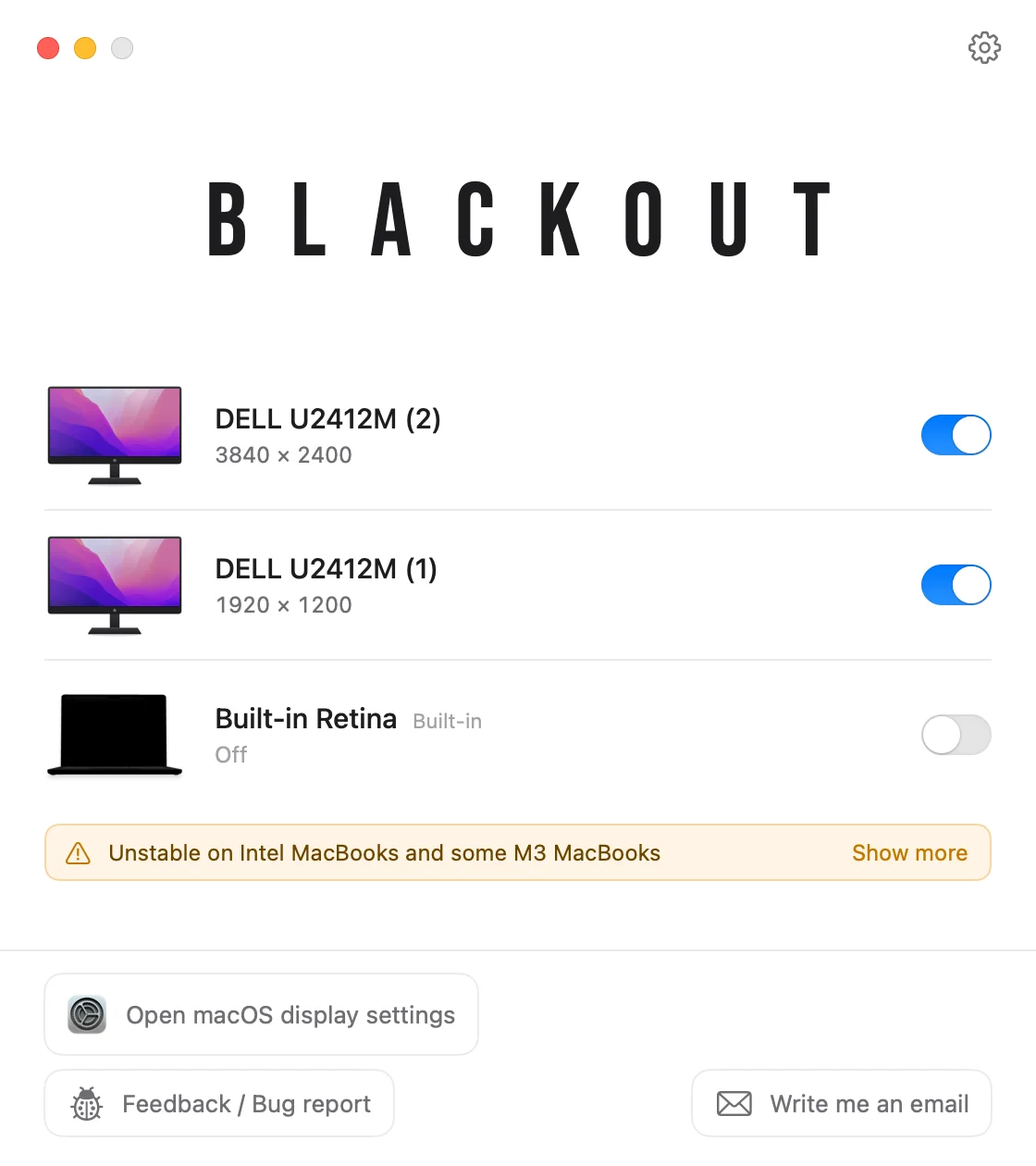
Blackout gives you clamshell mode with the lid open. It switches the built-in display off, so macOS treats it as disconnected and everything moves to your external monitor, while the keyboard, trackpad, camera, microphone and Touch ID keep working.
- No external keyboard, mouse or power adapter needed.
- Blackout only lets you switch the screen off while an external monitor is connected.
- Unplug the monitor, quit the app or restart the Mac, and the MacBook screen turns back on automatically.
Blackout is free to use for 7 days. If it works well for you, you can unlock unlimited use for a small price.