Clamshell mode without closing the lid
Clamshell mode turns your MacBook into a desktop computer: the built-in screen goes off and you work only on the external monitor. The catch is that macOS only does this when the lid is closed. Here’s why, what people try instead, and how to get clamshell mode with the lid open.
What clamshell mode does
Apple calls it “closed-display mode”. When you close the lid while an external monitor is connected, macOS switches the built-in display off and treats the external monitor as your only screen. The menu bar, the Dock and all windows move there, and the pointer can no longer get lost on a second screen.
According to Apple, you need three things for it:
- The MacBook connected to power.
- An external monitor.
- An external keyboard and mouse or trackpad, because the built-in ones are under the closed lid.
Why macOS needs the lid closed
macOS has no setting for “use the external monitor only”. It decides when to switch the built-in display off based on a sensor that notices when the lid is closed. As long as the lid is open, the MacBook screen counts as a display, even if you turn its brightness all the way down.
That’s a problem if you want to keep using what’s built into the MacBook:
- the keyboard and the trackpad,
- Touch ID for unlocking and passwords,
- the FaceTime camera and the microphones for video calls,
- or simply a tidier desk without an extra keyboard and mouse.
Workarounds people try (and their downsides)
Brightness all the way down
The screen looks off, but macOS still uses it as a display. The pointer and windows still slide onto it, and new windows can open there. See how to turn off your MacBook screen for the details.
Mirroring, then dimming
If you mirror the external monitor to the MacBook screen and dim it, you can no longer lose windows on it. But both screens still have to show the same picture, which can limit the resolutions you can pick on the external monitor. More on mirroring and other workarounds.
A magnet on the lid sensor
Some people hold a small magnet where the lid sensor sits, so the MacBook thinks the lid is closed. The right spot differs between models, the magnet can slip, and when you unplug the monitor the MacBook behaves as if the lid were closed and goes to sleep. It works, but it’s fiddly.
Clamshell mode with the lid open, using Blackout
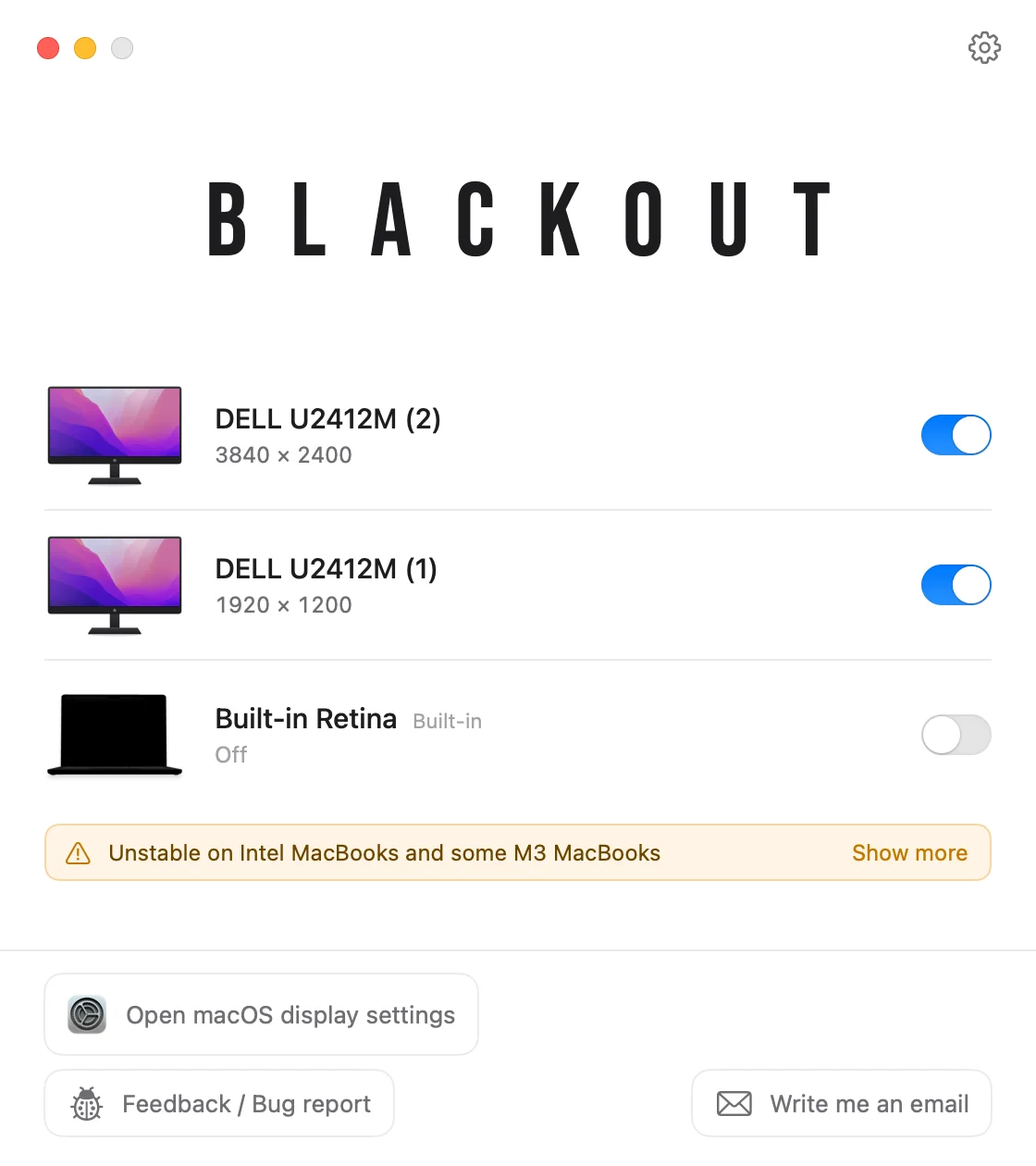
Blackout is a small menu bar app that does what clamshell mode does, without closing the lid. It switches the built-in display off, so macOS stops treating it as a screen and moves everything to your external monitor.
- Open Blackout from the menu bar while your external monitor is connected.
- Switch off the built-in display. Your desktop, the menu bar and all windows are now on the external monitor only.
- Keep using the MacBook’s keyboard, trackpad, camera, microphones and Touch ID.
On Apple Silicon Macs the built-in display disappears from System Settings › Displays, just like in clamshell mode. Nothing is changed permanently: if you unplug the monitor, quit Blackout or restart the Mac, the MacBook screen turns back on.
Blackout is free to use for 7 days. If it works well for you, you can unlock unlimited use for a small one-time price.
Questions
Do I need an external keyboard and mouse?
For real clamshell mode with a closed lid, yes. With the lid open and the built-in screen switched off by Blackout, no: the MacBook’s own keyboard and trackpad keep working.
Does this work on Intel MacBooks?
Blackout runs on Apple Silicon and Intel MacBooks with macOS 15 Sequoia or later. On Intel Macs the built-in display stays listed in System Settings, and on Intel Macs and the base M3 MacBook Air and MacBook Pro a hardware quirk might prevent switching it off. The compatibility table lists the tested models.
What’s the difference to keeping the lid open with the screen dimmed?
A dimmed screen is still a display for macOS. A switched-off screen isn’t, so your windows, the pointer and the Dock stay on the external monitor. All options for using a MacBook with the lid open.